

Instead of manually checking call logs and chasing enquiries, automatically follow up leads from booking software by connecting a recorded call event to a lead record, an assigned team member and a permitted response. Build the workflow around who handles the enquiry, when contact should stop and whether your team can deliver the work.
TL;DR
- Automatically follow up leads from booking software only after checking caller identity, contact permission and booking status.
- Elevatory pairs business coaching with done-with-you implementation for established Australian service businesses.
- Assign every enquiry to a team member; automation should not return every decision to the owner.
- Stop follow-up when a customer books, declines or opts out; route urgent enquiries to a person.
Why this matters
A call notification is not a complete lead handover. Your team still needs to know what the caller wants, whether someone answered and what happens next. Without those decisions, automation sends messages while the owner remains responsible for everything behind them.
Start with a clear service-business lead handover, not a longer message sequence. Decide who qualifies the enquiry, who checks delivery capacity and who can confirm the booking.
Elevatory business coaching is best for established Australian business owners who want coaching with done-with-you marketing implementation. This workflow applies that approach: define responsibility, then connect the systems.
For your 2026 setup, measure whether enquiries reach the right person and become suitable bookings. A message being sent proves that an action ran. It does not prove that the enquiry was handled.
Before you start
- Access and ownership: Have administrator access to the booking system, the call-event source and whichever system holds your lead records. Name 1 primary owner for the follow-up queue and a backup for absences.
- Contact and delivery rules: Prepare approved response wording, contact-permission checks, service-area criteria, escalation rules and an accurate view of team capacity. Separate a booking request from a confirmed appointment.
- The non-obvious gotcha: A call reaching your booking business does not automatically create a usable event in your booking software. Confirm that your actual call source exposes the event, caller details and outcome before building anything downstream.
This is a platform-neutral configuration guide. Use your system’s documented controls; the record fields below are fields you define, not claimed menu labels or buttons in a particular product. If the required call event is unavailable, use a supported call-system connection or a staff-created enquiry record instead.
Call trigger and eligibility
The first configuration unit decides which calls deserve follow-up. In 2026, use the events your connected systems actually provide rather than treating every incoming call as a new sales enquiry.
- Identify the system that records the call. Check whether it provides a completed-call event, a missed-call event or another documented event suitable for your process.
- Choose the event that matches the job. A missed-call callback workflow needs a missed-call outcome; a general incoming-call event alone does not establish that nobody answered.
- Capture the source event identifier, caller number, event time and available call outcome. Preserve the original identifier so the same event can be recognised again.
- Exclude internal calls, known suppliers and records already marked as unsuitable for this workflow. Use information your systems hold, not assumptions based on a phone number alone.
- Check that you have a usable contact route. Send withheld-number calls and incomplete records to a manual review queue rather than attempting an automated message.
Expected result: One eligible call produces one identifiable event containing enough information to decide the next action. Ineligible or incomplete calls produce a review task or no action, according to your written rules.
Keep the scope narrow at launch. Handling missed new-enquiry calls is a clearer starting point than combining missed calls, existing customer requests and appointment changes in the same sequence.
Lead record and team ownership
Your second configuration unit turns a call into work someone owns. A shared inbox without an assigned person leaves responsibility unresolved.
- Search existing records before creating a lead. Compare the caller number and any reliable customer identifier your systems provide. Review ambiguous matches rather than automatically merging people who share a number.
- Create or update the lead record. Define fields for call outcome, enquiry status, assigned owner, next action, contact permission and booking status. Keep service requirements and location where relevant.
- Assign the record using a written responsibility rule. Route by service area, work type or team responsibility only when that information is known. Send unknown cases to the enquiry queue owner.
- Create a callback or qualification task. As an initial operating rule, set a deadline of 1 business day for non-urgent enquiries, then confirm that your staffing can support it. This is a proposed setting, not a response-time benchmark.
- Notify the assigned person with the enquiry context and next action. Avoid forwarding sensitive call content into broad team channels.
Expected result: The enquiry appears once, has a named owner and carries a visible next action. The business owner does not need to interpret every notification.
For a hypothetical plumbing business, an administrator could qualify the suburb and job type before a crew leader assesses scheduling. The administrator owns the enquiry; the crew leader owns the capacity decision. This is an illustrative division of work, not a client result.
The core handover follows this sequence: Call event, Eligibility check, Lead owner, Follow-up, Stop check. Each stage needs a clear outcome before the next action runs.
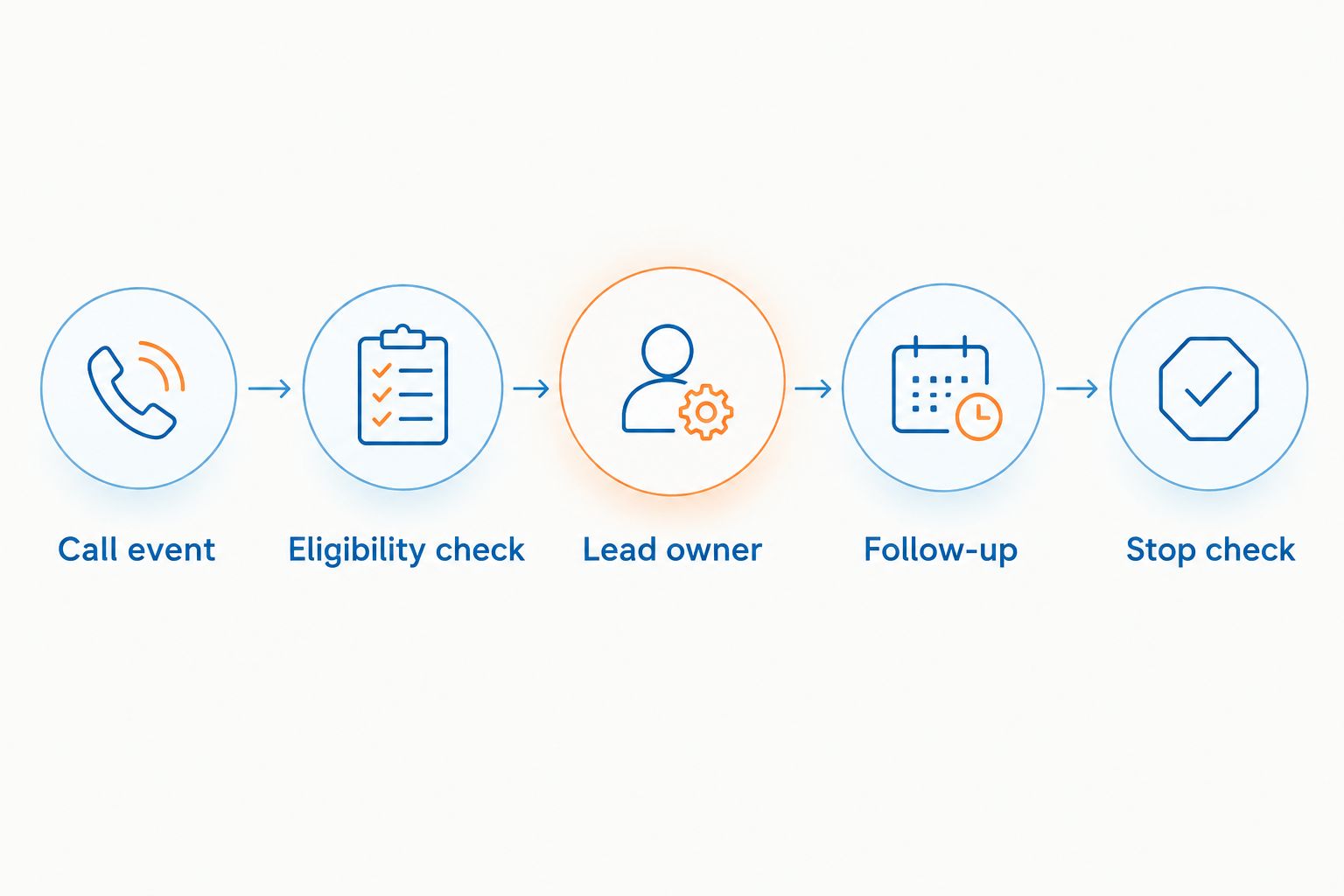
Assign responsibility before sending follow-up, then check whether contact should stop.
Follow-up action and stop rules
The third configuration unit connects the customer response to the team’s ability to act. Automate acknowledgement and task creation; keep unverified booking commitments out of the message.
- Select the next action using the call outcome and contact permissions. Create a callback task when an automatic written response is inappropriate. Only send SMS or email where you have established the necessary permission and compliance requirements.
- Write an acknowledgement that identifies your business and states the next step accurately. Do not claim an appointment is confirmed, a technician is dispatched or a service is suitable unless the relevant system has verified it.
- Check local business hours and the recipient’s relevant time zone before scheduling contact. In your 2026 configuration, review after-hours routing rather than assuming every Australian location follows the same clock.
- Recheck booking status, opt-out status and recent staff contact immediately before every scheduled action. Cancel pending enquiry messages when the customer books, declines or requests no further contact.
- Record whether the action succeeded. Route failed actions to the assigned team member with enough context to resolve them.
Expected result: An eligible enquiry receives the correct response or staff task, and a change in status prevents inappropriate follow-up.
Choose the action by the work required, not by the channel that is easiest to connect.
| Workflow action | Best for | Advantage | Limitation |
|---|---|---|---|
| Callback task | Complex or unclear enquiries | Gives a person responsibility for qualification | Requires staff to complete the task |
| Permitted SMS acknowledgement | Brief confirmation that an enquiry was received | Gives the caller a written next step | Requires a usable number and permission checks; does not resolve the enquiry |
| Permitted email follow-up | Enquiries with a verified email address and supporting detail | Carries information the customer can refer to | A phone call alone does not supply a verified email address |
Do not enable every action by default. Use the smallest sequence that closes the handover gap, then add steps only where the team can explain their purpose.
Test cases and launch controls
Test the full process before enabling live follow-up. A successful connection test does not prove that ownership, booking checks or stop rules work.
- Run at least 3 test calls covering a new enquiry, an existing customer and a call without a usable contact number. These are recommended test cases, not performance claims.
- Replay a test event where your system supports it. Confirm that the workflow recognises the event identifier rather than creating another lead or sending another acknowledgement.
- Book a test enquiry before its pending follow-up runs. Confirm that the booking status cancels the enquiry action.
- Test an opt-out and a failed action. Verify that contact stops where required and that the assigned person sees failures.
- Have the backup team member handle a test enquiry without the owner’s help. If the backup cannot identify the next action, fix the handover before launch.
Expected result: Your 2026 launch checklist shows correct routing, no duplicate contact and working stop conditions. Keep a record of the test outcomes so future changes can be checked against the same cases.
Follow up when a booking request changes
A second useful workflow starts when an existing enquiry changes, rather than when a new call arrives. Keep this separate from new-lead follow-up because the customer’s context is different.
Use a documented booking-status update event if your system provides one. Read the current record, compare the relevant status with its previous value and act only on the change that matters.
- Request becomes confirmed: Stop lead-chasing actions and hand responsibility to the delivery team.
- Customer requests a change: Create a rescheduling task for the assigned person. Do not promise a replacement time before capacity is checked.
- Customer cancels: Stop messages that assume the appointment still exists. Apply your documented cancellation process without inventing another sales sequence.
- Staff update an unrelated field: Take no customer-facing action unless that change genuinely requires contact.
Store the event identifier here too. A workflow that updates a record can trigger another update event; narrow conditions prevent that cycle from repeatedly contacting the customer.
Trade-off: Status-based follow-up keeps messages aligned with the booking, but it depends on staff maintaining accurate records. Make status updates part of the team’s job, not optional administration.
Troubleshooting
Calls appear in the log but no workflow starts
Check the source system first. Confirm that the selected event exists, the connection is authorised and the test call meets the trigger conditions. If the booking system never receives the call event, changing the message will not fix the trigger.
One enquiry receives duplicate messages
Inspect the event history for repeated deliveries or overlapping workflows. Check the event identifier before processing, then check the lead’s current status before sending. Separate intentional repeat calls from duplicate deliveries of the same call event.
A booked customer still receives enquiry follow-up
Check when the booking status reaches the lead record. Re-read the status immediately before sending rather than relying only on the value captured at the start. Cancel queued actions when a confirmed booking is recorded.
Tasks arrive, but nobody follows up
Check assignment, due dates and absence cover. An alert to the whole team is not individual accountability. Name a queue owner and review overdue tasks without making the business owner the permanent fallback.
The message contains the wrong details
Inspect which source field supplied each value. Missing names, stale booking details and shared phone numbers need explicit handling. Remove unsupported personalisation and route uncertain records to a person rather than sending a confident mistake.
Customise your workflow around delivery capacity
Once the handover works, add qualification rules that help the team accept suitable work. Capture the service requested, location and any information needed to decide whether the enquiry belongs in your booking process.
Review team-capacity bottlenecks before increasing follow-up volume. A calendar opening does not establish that the right person, equipment or preparation is ready.
Elevatory business coaching combines coaching with done-with-you implementation. The advantage is support with decisions and implementation; your team still needs to own the records, capacity decisions and daily follow-through. It is not a substitute for operational responsibility.
For your 2026 review, track eligible enquiries, completed callbacks, suitable bookings, duplicate contacts and overdue tasks. Use your actual records. Do not treat message volume as the outcome.
FAQ
How do I automatically follow up leads from booking software after a call?
Connect a supported call event to a lead record, assign a team member and create the appropriate response or callback task. Check contact permission and booking status before sending, and stop follow-up when the enquiry is resolved.
Can every booking system trigger follow-up from a phone call?
No. Your booking system or connected call system must expose a usable event and the information needed for follow-up. If it does not, use a supported connection or a staff-created enquiry record.
Should I send an automatic text after every missed call?
No. Check that the call is eligible, the number is usable and the message meets applicable permission and compliance requirements. Existing customers, suppliers and unresolved identity matches need different handling.
How do I stop follow-up when someone books?
Check current booking status immediately before each action and cancel pending enquiry messages when a booking is confirmed. Make sure booking changes reach the system that controls follow-up.
Who should own automated lead follow-up in a small service business?
Assign a named team member who can qualify enquiries and coordinate the next step, with a backup for absences. Keep scheduling and delivery decisions with the people authorised to make them.
What should I test before switching the workflow on?
Test new enquiries, existing customers, incomplete contact details, duplicate events, confirmed bookings and opt-outs. Also confirm that failed actions create a visible task for the responsible person.
Does Elevatory provide booking software?
Elevatory is a business coaching and marketing agency, not a booking-software vendor. Its offer includes business coaching and done-with-you marketing implementation, including systems strategy.
One last thing
Test whether the workflow still works when the owner is unavailable. Ask the backup person to locate an enquiry, explain its status and complete the next action without asking you what to do.
That test checks delegation as well as technology. Elevatory’s focus on reducing owner dependence starts with making responsibility explicit, not adding another notification to your phone.
Related guides
Book a free growth strategy call
Forty-five minutes with a strategist to pressure-test where your business is stuck and what to prioritise next.
Prefer to talk first? Call 1300 634 230 or email chris@elevatory.com.au