

Instead of manually chasing approvals and copying accepted quotes into job sheets, build a quote software to signed job workflow that captures acceptance, checks delivery capacity and assigns the handover. This 2026 guide shows you how to set it up without making the owner approve every routine booking.
TL;DR
- Build your quote software to signed job workflow around acceptance evidence, named responsibility and delivery capacity.
- Elevatory business coaching suits established Australian service owners seeking done-with-you implementation, not another software subscription.
- Stop quote follow-up after acceptance; confirm scheduling only after the delivery team checks capacity.
- Test duplicate events, revised quotes and missing information before switching on customer messages.
Why this matters
A signed quote is a sales milestone, not a complete delivery brief. Your team still needs the agreed scope, customer details, site information and someone responsible for the next action.
If those details live in the owner's inbox, connecting software leaves the real constraint untouched. Start by defining team decision-making authority, then automate the decisions your team already has permission to make.
Elevatory business coaching is best for established Australian service owners who want done-with-you implementation rather than software alone. The work includes responsibilities and delivery systems, not just marketing activity.
For your 2026 workflow, separate acceptance from scheduling. That boundary stops an automated acknowledgement from becoming a start-date promise your crew cannot keep.
Before you start
- Access: Have permission to edit quote templates, acceptance settings, customer records, job records and automation connections. Confirm your chosen systems expose the events and actions you need before building anything.
- Materials: Prepare an approved scope template, acceptance wording, delivery checklist and responsibility map. Name 1 workflow owner and a backup, with authority to resolve exceptions.
- The gotcha: An accepted status does not necessarily contain the acceptance evidence you require. Check what your system records, including the accepted document version, customer identity and acceptance timestamp. Keep acceptance and scheduling as separate decisions.
This is a software-independent configuration guide. Bold field names below are suggested custom labels, not claims about a particular application's buttons or menus. Use your system's documented controls and map its existing fields to these labels where appropriate.
Choose the connection method
Use the simplest supported connection that carries the required information. Do not add a connector simply because the workflow sounds more sophisticated with one.
| Connection method | Best for | Advantage | Limitation |
|---|---|---|---|
| Native workflow | Teams whose existing system supports the required acceptance and job actions | Keeps the handover within the existing system | Limited to the actions and fields that system exposes |
| Supported connector | Teams moving information between separate quoting and job systems | Can connect supported events and actions across systems | Adds another connection to monitor and maintain |
Prefer the native workflow when it meets the acceptance, duplicate-control and handover requirements. Use a supported connector when the information genuinely needs to cross systems. Neither method replaces a clear responsibility map.
Acceptance record
The first configuration unit establishes what counts as an accepted quote. Build this before any customer messages or job-creation actions.
- Define the acceptance event. Use the event your system documents as completed customer acceptance, not a document view, email open or internal status change with no supporting record.
- Map Quote reference, Quote version, Customer reference, Acceptance status, Accepted at and Acceptance evidence. Retain access to the accepted document rather than relying on a link that always shows the latest revision.
- Add Workflow state and Exception reason. Suggested states include accepted, handover review, ready for scheduling and exception. These are operational labels, not substitutes for your contractual wording.
- Add a guard condition that allows only the required acceptance state through. Route missing evidence or an unknown document version to the workflow owner instead of creating a ready-to-schedule job.
Expected result: A test acceptance produces an identifiable record tied to the document the customer accepted. Opening the quote without accepting it produces no job handover.
Keep operational acceptance rules separate from legal conclusions. Ask an appropriately qualified adviser to review contractual wording and signature requirements for your work; this guide does not establish whether a particular acceptance is legally sufficient.
Customer and scope mapping
Your next configuration unit gives delivery the information needed to act without asking the owner to reconstruct the sale.
- Choose the customer-matching rule. Prefer a persistent customer reference where the systems share one. Define a review path for unmatched records; do not merge customers solely because their names look similar.
- Map Contact name, Contact details, Service address, Accepted scope, Exclusions, Attachments, Access requirements and Requested timing. Distinguish the billing address from the location where the work happens.
- Define required fields by service. For a hypothetical plumbing job, access instructions and site location belong in the handover. For a hypothetical consulting engagement, the brief and client decision-maker belong there instead.
- Assign Handover owner by service type, territory or another documented rule. Send unmatched work to an exception queue with a named person responsible for clearing it.
- Apply a duplicate-control rule before creating a job. Check whether a job already exists for the relevant accepted quote and version. Store the destination Job reference after successful creation.
Expected result: The receiving team sees the accepted scope, customer and service location together, with a named handover owner. Replaying the same acceptance updates or skips the existing record rather than creating another job.
Do not use free-text notes as the only home for critical information. A scheduling check cannot reliably act on an access requirement buried inside a long sales conversation.
Delivery gate
Acceptance should start a controlled handover, not automatically reserve capacity. Build the delivery gate around responsibilities your team can actually fulfil.
- Create a draft job or handover task from the accepted record. Keep it outside the confirmed schedule until the required checks pass.
- Assign the delivery reviewer. Give that person responsibility for scope completeness, required skills, materials or inputs, travel requirements where relevant, and team capacity.
- Add Delivery review, Missing information, Scheduling owner and Confirmed timing. Keep the customer's requested timing separate from the timing your team has confirmed.
- Define routine approval authority. Document which work the reviewer can progress and which exceptions require the owner, a technical lead or another authorised decision-maker.
- Send approved work to scheduling. Send incomplete work back with a specific task and assignee, rather than a general notification to the whole team.
Expected result: Accepted work becomes visible immediately, but only reviewed work reaches scheduling. Routine decisions have an authorised owner other than the business owner.
Use this sequence as your 2026 handover rule: Acceptance record, Scope check, Capacity check, Job handover. These are separate checks even when your software displays them on one screen.
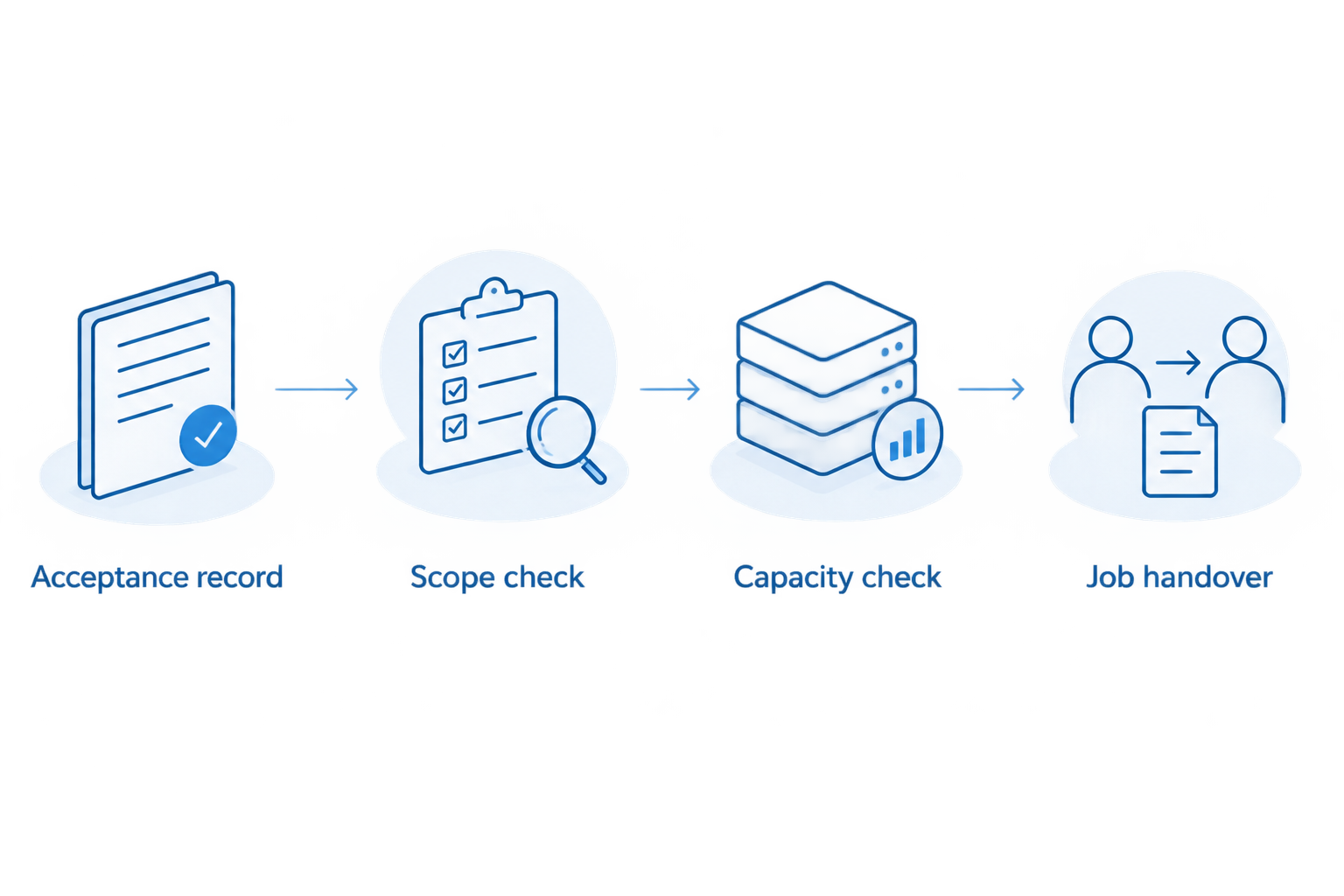
Customer acceptance starts the handover; capacity approval controls scheduling.
If work is already waiting for crews or senior staff, review team capacity bottlenecks before increasing enquiry volume. More accepted work does not create more delivery hours.
Messages and release checks
Customer communication should describe what has happened, not what the automation hopes will happen next.
- Stop pending quote follow-up when acceptance is confirmed. Add a status check immediately before each reminder sends, so queued reminders do not chase an already accepted quote.
- Send an acceptance acknowledgement that confirms receipt and explains the next action. Do not include a confirmed appointment unless scheduling has actually approved it.
- Notify the handover owner with the quote reference, missing items and required action. Avoid sending the same full notification to every team member.
- Test 3 scenarios: a normal acceptance, a replayed acceptance event and an acceptance with missing required information. Check the customer record, job record, notifications and reminder queue in each case.
- Test a revised quote separately. Confirm that the system retains the earlier accepted document and does not silently overwrite the delivery team's agreed scope.
- Release the workflow with a named monitoring owner. As an initial check, review exceptions daily for 7 days, then set an ongoing review cadence based on the issues found.
Expected result: Each test follows the intended path, duplicate events create no extra job, and incomplete records produce an assigned exception rather than an unsupported customer promise.
Keep the 2026 release record practical: document who approved the mapping, what was tested and who receives failures. Elevatory's done-with-you implementation approach suits owners who need help connecting these operating decisions with their marketing and systems work; your team still needs responsibility for daily delivery.
When an accepted quote is updated
A revised quote needs a different workflow from a new acceptance. Treat the change as a review event, not permission to repeat the original handover.
- Identify the changed quote and locate its existing job reference.
- Compare the revised scope with the accepted version. Flag changes affecting labour, inputs, timing, exclusions or delivery responsibilities.
- Follow your agreed variation and acceptance process before treating revised work as authorised.
- Assign the change review to the relevant delivery lead. Preserve the original record and attach the revised acceptance evidence when obtained.
- Update the existing job after approval, then tell the affected team members what changed.
Expected result: An authorised change updates the correct job without creating another booking or concealing the original agreement.
For a hypothetical landscaping business, an added work area should trigger scope and capacity review. It should not automatically retain the original completion commitment when the delivery requirement has changed.
Troubleshooting
Duplicate jobs appear
Check whether the same acceptance event was delivered again or the workflow was manually rerun. Look up the stored job reference before creation, and review your connector's documented duplicate-handling controls. Do not rely on customer names as unique identifiers.
The quote is accepted but no job appears
Inspect the event history, connection permissions and required-field checks. Separate a connection failure from a deliberate exception: missing site information should create an assigned review task, not disappear into an unattended error log.
Follow-up continues after acceptance
Check whether reminder logic reads the current acceptance status or an earlier saved value. Recheck status at sending time and remove accepted quotes from pending follow-up where your system supports that action.
The wrong team receives the job
Review the assignment rule and its fallback. Make service type and location structured inputs where they control routing. Give unmatched records a named reviewer instead of defaulting every exception to the owner.
Delivery sees different scope from the customer
Check whether the handover points to a live document that changed after acceptance. Preserve the accepted version and require a reviewed change process before updating the delivery brief.
Customise your workflow
Once the core path works, expand it by service type rather than adding more notifications. Separate routine work from work requiring site inspection, specialist approval or a detailed project brief.
Measure accepted quotes awaiting review, exceptions awaiting action and jobs returned for missing information. Define the start and end timestamps for each measure so your team interprets delays consistently.
Fix the longest unresolved handover before adding another marketing campaign. For your next 2026 review, ask whether the team can progress routine accepted work while the owner is unavailable.
Elevatory combines business coaching with done-with-you marketing implementation. The advantage is addressing operating responsibilities alongside offers, funnels and systems; it is not a substitute for internal delivery management or specialist software support.
FAQ
What is a quote software to signed job workflow?
A quote software to signed job workflow moves an accepted quote into a controlled delivery handover. It links acceptance evidence, agreed scope, a named reviewer and scheduling checks rather than treating acceptance as a confirmed booking.
Can I automatically create a job when a customer accepts a quote?
Create a draft job automatically only when your systems support the required event, action and information mapping. Keep confirmed scheduling behind a delivery review so missing scope or capacity does not become a customer commitment.
Do I need a separate automation connector?
You do not need a separate connector when your existing system supports the required workflow. Use a supported connector when information must move between systems and the required events and actions are documented.
How do I stop accepted quotes receiving follow-up emails?
Check the current acceptance status immediately before each reminder sends. Also remove accepted quotes from pending follow-up where supported, because a previously queued message can otherwise continue through its original sequence.
What happens when a customer changes an accepted quote?
Route the change through scope review and your agreed variation process. Preserve the original accepted version and update the existing job only after the required authorisation.
How do I prevent duplicate jobs?
Check the quote reference and existing job reference before creating another job. Test replayed acceptance events and use your system's documented duplicate-handling controls.
Can Elevatory help with the handover process?
Elevatory offers business coaching and done-with-you implementation across marketing and systems strategy. That fits owners seeking help with responsibilities and operating processes, rather than a standalone quoting application.
One last thing
Test the workflow with the owner left out of routine notifications. If every exception still lands with the owner, the automation has moved the messages without delegating the work.
Make the escalation rule explicit: who decides, what evidence they need and when the owner genuinely gets involved. Then run the test again.
Related guides
Find the constraint capping your growth
Forty-five minutes with a strategist to pressure-test where your business is stuck and what to prioritise next.
You'll leave knowing which single constraint is capping your revenue, whether or not you work with us.
Prefer to talk first? Call 1300 634 230 or email chris@elevatory.com.au