

Instead of manually copying bookings into the team calendar, connect booking software to job calendar events through a supported integration that creates, updates and cancels the matching job. Keep booking details authoritative in one system, assign a scheduling owner and test the handover before your team relies on it.
TL;DR
- Connect booking software to job calendar events using booking IDs, not customer names, to match records.
- Keep booking software authoritative; the team calendar shows assigned work, timing and necessary job details.
- Test rescheduling, cancellations and crew changes before switching off manual entry.
- Elevatory business coaching suits established Australian owners seeking coaching with done-with-you implementation, rather than software alone.
Why this matters
A calendar connection should remove routine decisions from your desk. If every booking still needs your approval, the integration has moved information without handing over responsibility.
Fix ownership before automation. Decide who can confirm work, allocate a crew and resolve a clash. Elevatory provides business coaching with done-with-you implementation; a calendar connection is one practical place to apply clearer responsibilities and delivery systems.
For your 2026 setup, separate demand from capacity. A customer requesting Tuesday morning does not mean your team can deliver then. Check skills, location, travel and existing commitments before treating a request as a confirmed job.
Before you start
- Access: Get permission to read bookings, connect the integration and create or edit events in the actual team calendar. Use a business-controlled account with a named administrator.
- Materials: Prepare a staff-to-calendar list, booking statuses, service durations, travel rules and a dummy customer record. Choose a scheduling owner who can resolve exceptions without referring every decision to you.
- The gotcha: Confirm that the connection supports updates and cancellations, not just new events. Also check whether calendar events block future bookings; a display-only connection does not prevent double-booking.
This guide describes configuration decisions rather than product-specific clicks. Control names differ between platforms. Use the equivalent controls in your software and confirm supported actions in its current documentation before building the workflow.
Booking rules and connection method
- Choose the authoritative record. Keep customer booking time, service, status and assigned worker in the booking system. Treat the calendar as the team's delivery view unless your existing operating process requires otherwise.
- Define the trigger. Use a confirmed booking or an explicitly approved job. Do not send every enquiry to the crew calendar as committed work.
- Choose the destination. Decide whether each job belongs on a shared calendar, an individual worker's calendar or an existing crew calendar. Document the routing rule.
- Check the connection method. Compare the supported methods below against your actual requirements. Do not assume an option supports both directions because it displays events.
| Connection method | Best for | Advantage | Limitation to check |
|---|---|---|---|
| Built-in integration | A supported booking-and-calendar pairing | Keeps configuration within the connected products | Confirm supported fields, updates and cancellation handling |
| Automation connector | Conditional routing between supported systems | Lets you define triggers, filters and field mappings | Requires error handling and reliable record matching |
| Calendar subscription | Read-only visibility where the feed supports it | Provides a separate calendar view | Refresh timing and editing behaviour depend on the feed |
Use a built-in integration when it meets the full workflow. Choose an automation connector when you need supported routing or transformation that the built-in connection does not provide. Keep a subscription read-only; do not mistake visibility for scheduling control.
For a 2026 configuration, record which method you selected and which actions it supports. Include who owns the connection if its administrator leaves.
Expected result: You have a defined trigger, destination and authoritative system, plus a connection method that supports your required actions.
Job fields and record matching
- Connect the accounts. Authorise access using the business-controlled account. Select the intended calendar explicitly; do not rely on whichever personal calendar appears first.
- Map the booking identifier. Pass the booking system's unique ID into a dedicated reference field or restricted event description. Preserve that identifier when the customer changes the appointment.
- Map the essential job fields. Include service, start, finish, assigned worker and the location needed for delivery. Give field staff enough information to act without copying unnecessary customer records.
- Store the calendar event identifier. Where the workflow creates an event, retain its returned ID against the booking or in a separate mapping record. Use that ID for later edits.
- Define missing-data handling. Route bookings without a worker, finish time or required location to the scheduling owner. Do not silently fill gaps with guessed values.
Use this mapping checklist during configuration. These are suggested field descriptions, not claims about labels in your software.
| Booking information | Calendar destination | Check before publishing |
|---|---|---|
| Unique booking ID | Reference field or restricted description | Survives a reschedule |
| Service and job reference | Event title | Avoids unnecessary personal details |
| Start and finish | Event date and time | Includes the correct time zone |
| Assigned worker or crew | Destination calendar | Matches the approved allocation |
| Delivery address | Location | Identifies the actual job site |
| Approved access instructions | Restricted description | Visible only to people who need them |
Match records by identifier, not by customer name. One customer can have several jobs, and names can change or be entered differently.
Expected result: A dummy confirmed booking creates one event on the intended calendar, with a stored link between the booking ID and event ID.
Capacity checks and team handover
- Set the time zone deliberately. Check the booking account, integration and destination calendar. Use named Australian time zones rather than assuming a fixed offset works across states and daylight-saving changes.
- Represent working time honestly. Separate the customer-facing appointment from preparation, travel and pack-up where your systems support it. Do not extend the customer appointment merely to hide internal scheduling requirements.
- Apply assignment rules. Route jobs by the worker or crew approved in the booking record. Send unassigned work to a scheduling queue rather than broadcasting it as everyone's responsibility.
- Define conflict handling. If the connection cannot check capacity, retain an approval step before confirmation. Give the scheduling owner authority to reject a slot or offer another time.
- Set privacy and notification rules. Restrict calendar access, inspect the event visibility and check whether creating an event sends customer invitations. Do not add customers as guests unless your booking process requires it.
The handover is a short sequence: Booking confirmed, Capacity checked, Crew assigned, Calendar updated, Exceptions owned. Each stage needs a responsible person or a tested rule.
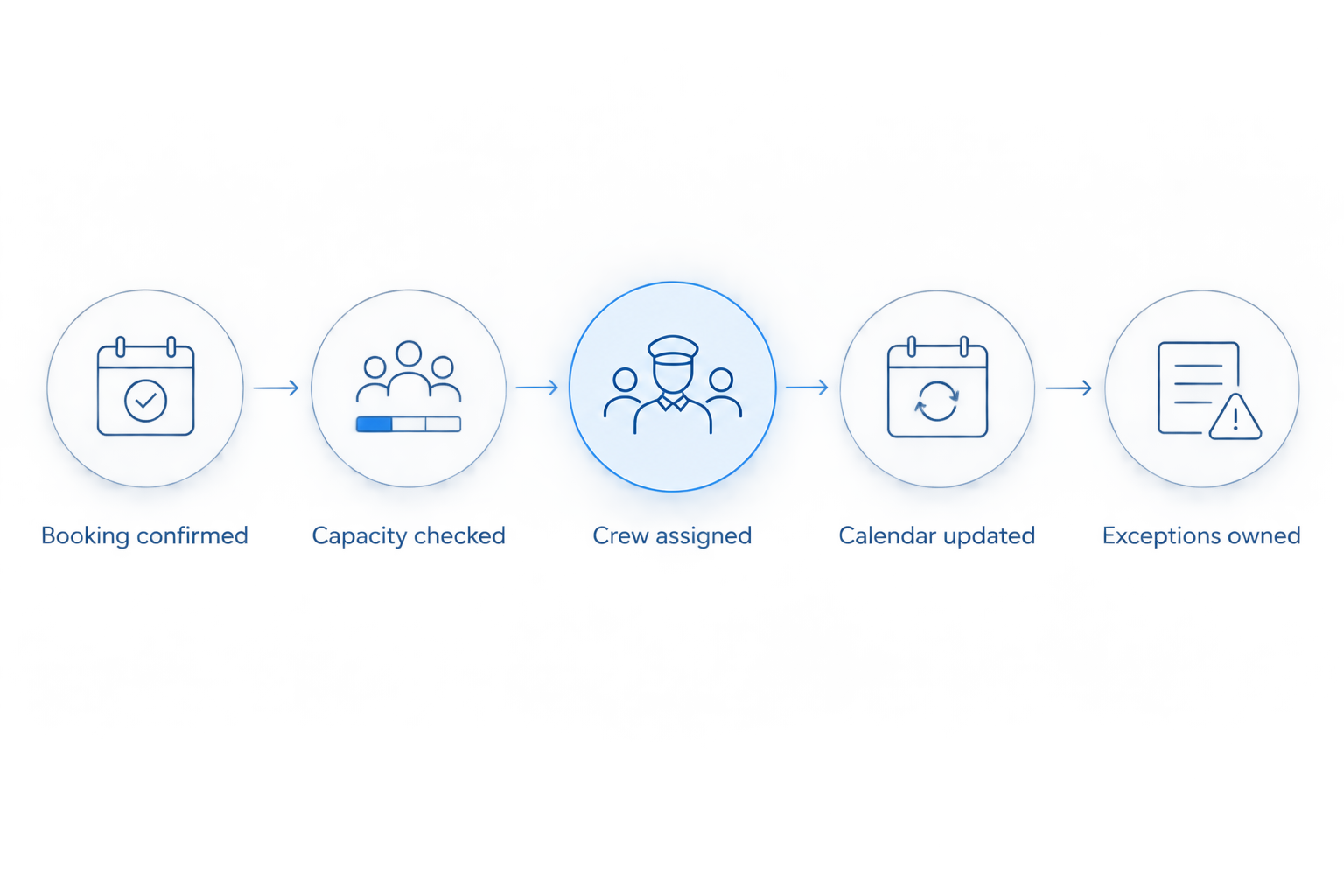
The calendar update sits inside a delivery process, not outside it.
A hypothetical home-services example: a customer books a 60-minute visit, and your scheduling rule reserves a separate 30-minute travel buffer. Those are illustrative settings, not recommended durations. Your service area, job type and crew requirements determine the actual allowance.
Expected result: The allocated team member can see when and where to attend, while someone other than the owner manages routine scheduling exceptions.
Testing and release
- Create a controlled test booking. Use a dummy customer and a clearly marked test event. Keep live customer notifications disabled during testing where your tools permit it.
- Run the full booking lifecycle. Create the booking, move its time, change its worker and cancel it. Confirm each action affects the intended event and calendar.
- Repeat a delivery attempt. If the integration provides a replay or retry function, resend the same test record. Confirm it updates or recognises the existing event instead of creating a duplicate.
- Test a failure deliberately. Use an unmapped worker or missing required field. Confirm the scheduling owner receives a useful alert and knows how to recover the record.
- Release with a review window. As a practical starting routine, compare bookings with calendars once per working day during the first working week. Adjust the review frequency to your booking volume and delivery risk.
For your 2026 acceptance check, record the booking ID, expected outcome, actual outcome and person who approved the test. A successful new booking alone is not a complete test.
Expected result: Creation, changes, cancellations and exceptions work as intended, with no unexplained duplicates or owner-only recovery steps.
Update the calendar whenever a booking changes
New-booking automation is only the first workflow. Add a second workflow for changes when your integration supports a suitable update trigger.
Start with the changed booking's unique ID. Retrieve its stored event ID, check the current booking status and update the existing event rather than creating another one.
Handle these changes explicitly:
- Rescheduled time: Replace the old start and finish. Check that the old slot no longer appears occupied by a duplicate event.
- Different worker: Move or replace the event according to the destination system's supported behaviour. Confirm the previous worker no longer sees an active assignment.
- Cancelled booking: Remove the commitment or mark it cancelled according to your agreed calendar policy. Make the cancelled status unmistakable to the crew.
If calendar editing also updates bookings, define which system wins when both records change. Keep the connection one-way unless the team genuinely needs two-way editing. One-way editing limits where staff change booking details; its trade-off is that calendar edits do not update the booking record.
Troubleshooting
The same job appears twice
Check whether both a built-in integration and an automation connector are creating events. Keep one creation route, then inspect whether retries look up the existing booking ID before creating anything. Remove duplicates only after identifying the active event.
Jobs appear at the wrong time
Compare the source booking time zone, integration conversion and calendar display zone. Check whether a date-only value became an all-day event. Test a cross-state booking and a daylight-saving transition relevant to your service area before approving the correction.
A reschedule creates a new event
Inspect the update workflow's lookup step. It needs the original calendar event ID, not a search based solely on customer name or the new appointment time. Route a missing match for review rather than automatically creating another event.
Cancelled work stays on the crew calendar
Confirm that cancellation is an event your integration receives. Some workflows watch creation only. Add supported cancellation handling, or assign a documented manual cancellation check until the connection covers it.
The connection stops after an account change
Check the integration's connection status, access permissions and destination calendar access. Reauthorise through the business-controlled account, then replay failed records carefully. Search for existing events before replaying creation actions.
Customise your workflow
Once the calendar connection works, improve the decisions around it. Track unassigned jobs, rejected slots and bookings that need owner approval. These records show where responsibilities or delivery rules remain unclear.
For your 2026 operating plan, connect marketing activity to the work your team can accept. Do not increase enquiries while confirmed jobs sit without an assigned crew. Start with the team capacity bottlenecks guide if scheduling keeps exposing a delivery constraint.
Elevatory business coaching combines coaching with done-with-you implementation. It suits owners who want support with strategy and implementation, but it is not a substitute for checking the technical capabilities of your booking platform.
FAQ
What's the best way to connect booking software to a job calendar?
Use a supported connection that handles the booking lifecycle you need: creation, rescheduling, reassignment and cancellation. Choose the method after checking those actions, not just whether the products can display the same appointment.
Can I connect bookings without an automation connector?
Yes, if your booking software offers a suitable built-in calendar integration. Confirm its direction, supported fields and cancellation behaviour before using it for live crew scheduling.
Will connecting my calendar stop double-booking?
A calendar connection alone does not establish double-booking protection. Confirm that the booking system checks the relevant calendars and resources before it accepts a slot.
Should staff edit jobs in the booking software or the calendar?
Choose one authoritative place for routine booking edits and train staff to use it. If you enable edits in both systems, define conflict rules and test how competing changes are resolved.
How do I stop duplicate calendar events?
Store a relationship between the unique booking ID and the calendar event ID. Check that relationship before creating an event, and avoid running overlapping event-creation integrations.
What customer information should go on the team calendar?
Include only the information each worker needs to deliver the job. Restrict access and keep sensitive case notes or unnecessary personal details out of broadly shared event titles and descriptions.
Can Elevatory replace my booking software?
Elevatory provides business coaching and done-with-you marketing implementation, not booking software. Keep technical product selection separate from decisions about team responsibility, delivery capacity and owner dependence.
One last thing
Automating an owner approval step does not delegate the decision. Before you finish, write down which scheduling decisions your coordinator can make without you, and which exceptions genuinely require escalation. Give the team authority alongside calendar access.
Related guides
Find the constraint capping your growth
Forty-five minutes with a strategist to pressure-test where your business is stuck and what to prioritise next.
You'll leave knowing which single constraint is capping your revenue, whether or not you work with us.
Prefer to talk first? Call 1300 634 230 or email chris@elevatory.com.au